
Most workdays follow the same pattern. A flood of meetings. A pile of messages. A plan that keeps slipping because the important pieces get buried. Many professionals already have AI inside their tools, yet their workload feels the same.
The issue happens during execution. AI helps only when it improves the output you produce, not when it sits unused in the background. This guide shows how to apply AI to the tasks that shape your day and the results that define your performance.
How AI is being used to improve work productivity
A simple way to judge AI at work is to look at what quietly changed in your week. For example:
-
It takes routine work off your hands
Repetitive tasks like drafting similar emails, status updates, or simple reports now start from an AI draft instead of a blank screen. -
It cuts down on heavy reading
Long reports, meeting transcripts, or research docs are turned into short summaries you can scan and act on instead of reading end to end. -
It upgrades “showtime” work with less effort
Slides, client updates, or leadership docs reach a clearer, more polished version in less time because AI helps structure content and tighten language.
If none of this looks familiar yet, AI is probably installed but not yet embedded in your actual workflow. The value of AI only becomes real when it improves specific pieces of work. Not theory. Not features. Actual outputs. Emails. Slides. Research. Meeting notes.
How to use AI at work to improve productivity? 5 use cases
The five use cases below map directly to those jobs and give you a clear way to apply AI in each one.
1. Writing emails, reports, and internal communication
For writing, treat AI as a first-draft partner. Paste notes or a rough draft. Say who will read it and what they should know or do. Ask for a short email, update, or summary, then fix facts and tone.
This pattern works when you need to keep people aligned but cannot spend much time on each message. You can use it to:
- Send weekly status updates after each project or sprint.
- Turn meeting notes into a recap for a client or manager.
- Explain a delay or change of plan in a calm, clear way.
For this, I often use Gemini to draft and rewrite. When the content comes from a meeting, Plaud Note Pro can record and transcribe. Then I use the built-in AI assistant “Ask Plaud” to turn the transcript into a follow-up email directly.

2. Automating repetitive tasks and admin work
Pick one repeating task. Write the input/output rule. Ask the assistant to make a short prompt or template. Reuse the prompt until edits are minimal.
This helps when you often:
- Turn meeting notes into task lists with owners and dates.
- Send similar follow-ups after sales or support calls.
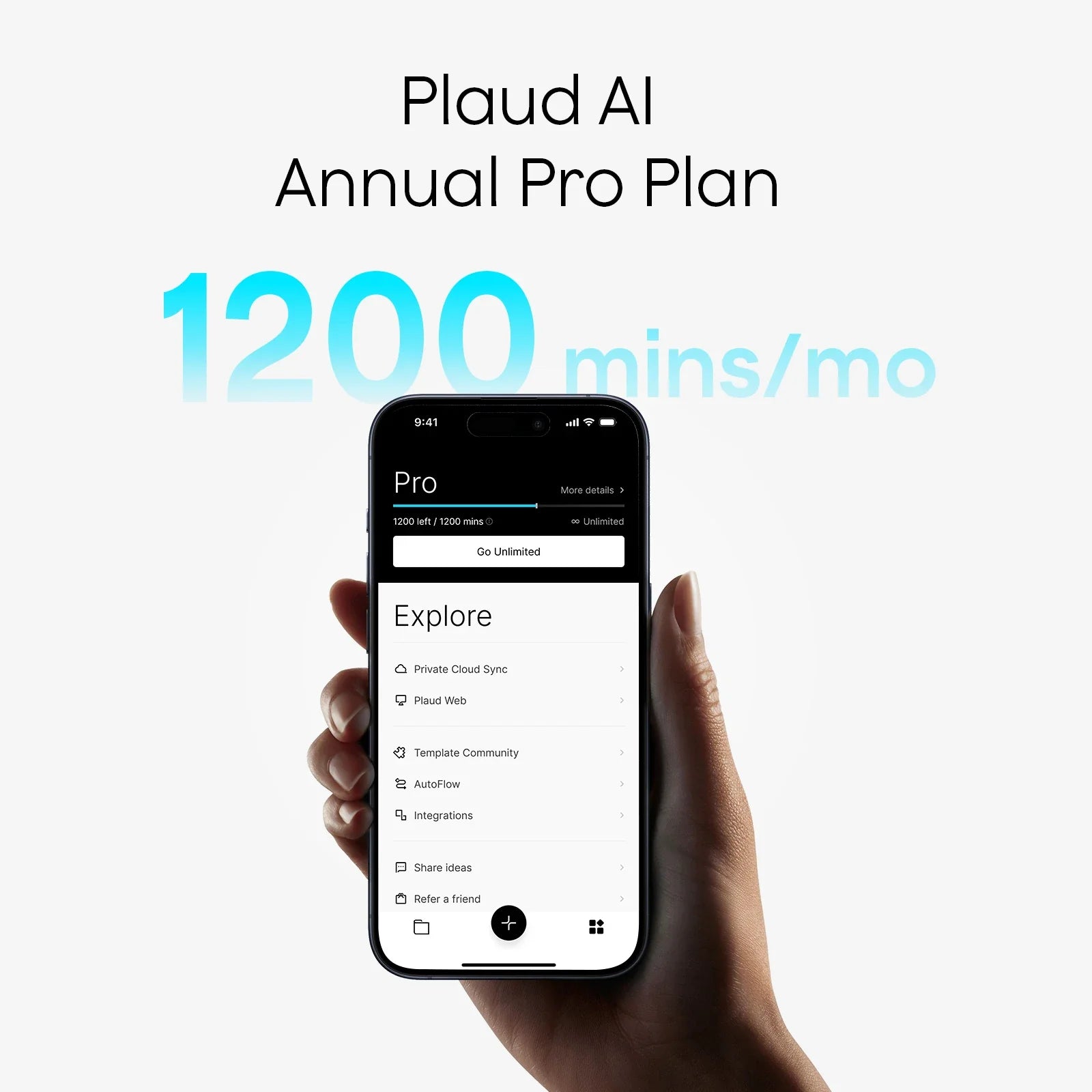
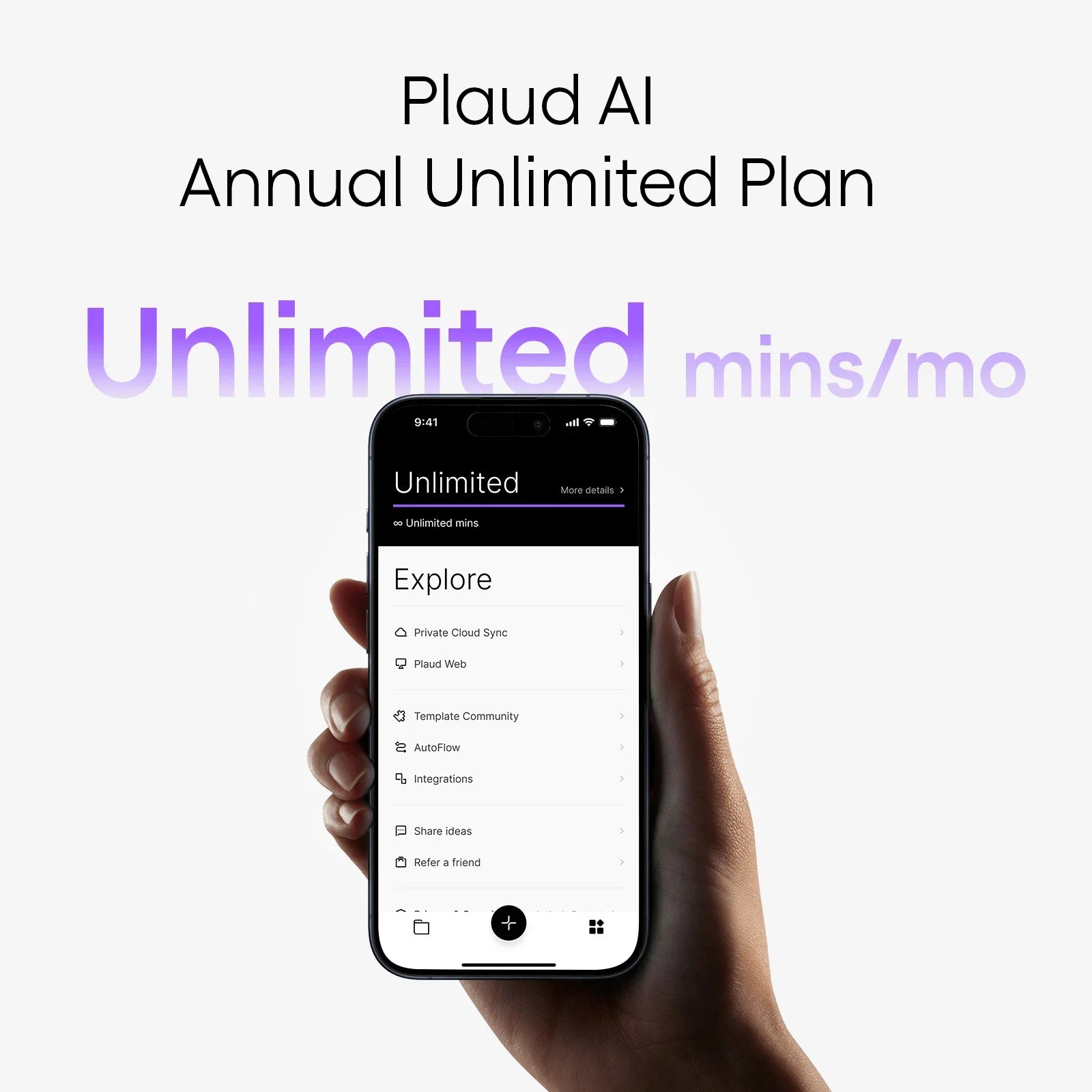
As a Plaud user, the AutoFlow feature sends meeting summaries with action items straight to my inbox. I only need to set it up once, and I no longer have to rely on my memory to recall what was discussed.

3. Researching, combining sources, and preparing reports
Research is easier when you narrow the question and let AI handle both your own material and the web. Start by stating the problem and key context. Then give the assistant a few documents or notes, and ask it to combine them with Gemini’s deep search on the internet. Request a short outline or a structured report with sources at the end.
You can rely on this when you:
- Need a brief before meeting a new client or partner.
- Compare a few tools or vendors for the same job.
- Want a quick view of how a new rule or trend may affect your team.
Here, Gemini can produce a draft report that already includes links or citations, so you know what to read if you want to double-check a point.
4. Data analysis and forecasting for decision support
With data, the goal is to move from raw numbers to a picture you can reason about. Copy the table or export that holds the key series. And let Gemini describe what changed over time and suggest charts that show the pattern. Then ask it to highlight the points that matter for the decision you need to make.
This is useful when you:
- Review monthly or quarterly results.
- Notice a sudden move in a core metric.
- Explore simple “what if” cases before a meeting.
Gemini 3.0 brings stronger performance on data tasks. Many people are trying it and find that short prompts can produce detailed visuals or simple animations, so it is worth testing if you work with numbers.
5. Internal search across meetings, notes, and decisions
For past work, start with a plain question instead of a file name. Ask “What did we decide about the launch timeline for project X?” or “What concerns has client Y raised about price in the last month?” Then ask for a short answer plus a way back to the source.
This helps when you:
- Get ready for a recurring client or team meeting.
- Join a project late and need the key decisions fast.
- Check who agreed to which deadline or risk.
Here, Plaud Note Pro with Ask Plaud fit well. They store recordings and transcripts and let you search by meaning, then jump back to the original audio. Once you have the right pieces, you can keep the answer as is or ask Gemini to compress it into a short brief for your team.

Best AI tools to improve work productivity
Different problems call for different tools. These three cover most daily needs at work.
Plaud Note Pro: AI note taker for meetings and calls
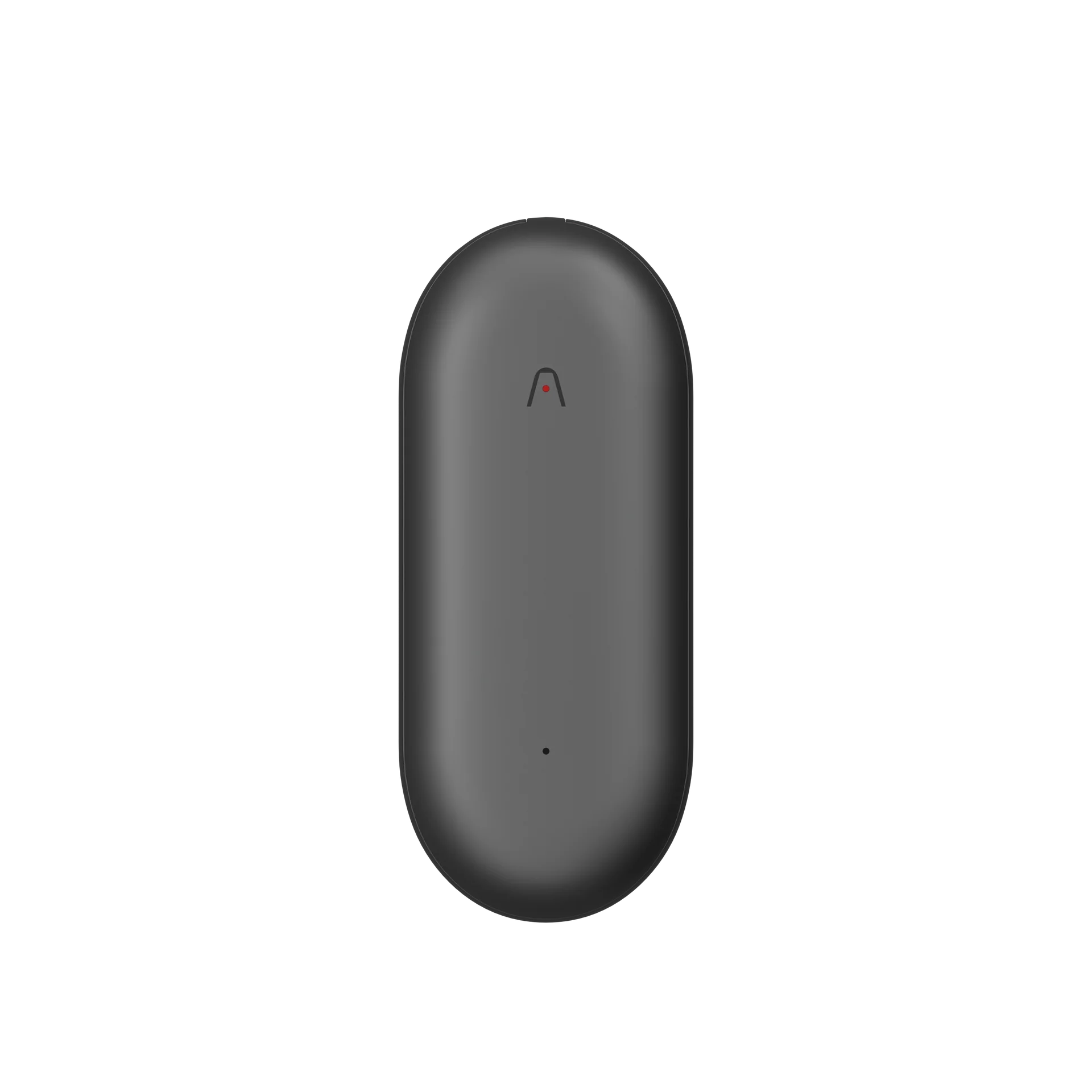
Plaud Note Pro is an AI note taker for real-time work. Meetings. Calls. Fast discussions. It captures the conversation and the quick photos you take of whiteboards or slides, then keeps everything together. You choose a template that fits the situation, like a client recap or team action list, and Plaud turns the raw material into clean notes. With AutoFlow on, those notes arrive in your inbox or a teammate’s inbox as soon as the recording is processed. No extra copying. No manual cleanup.
Canva: Fast visual output when your work ends as a slide or one-pager
Canva is a visual design tool for people who need clear slides or simple graphics but do not have time to learn design. The flow is straightforward. You take a short outline or summary, drop it into a template, and let Canva suggest layouts and visuals. Your energy goes into tightening the message, not fighting with formatting.
ChatGPT / Claude / Gemini: General assistants for thinking through harder problems
ChatGPT, Claude, and Gemini are general assistants for messy problems. They help when you know the pieces but not the structure. People use them to pressure-test plans, turn dense internal documents into step-by-step instructions, or list the risks and questions different stakeholders might raise before a meeting. Instead of staring at an unstructured draft, you ask the model to organize it so you can focus on judgment.
Conclusion
AI only matters when it changes the way you handle real tasks. Writing. Meetings. Decisions. The goal is not to “learn AI” as a topic. The goal is to capture what happens in your work and turn it into clear, usable output. Once this system is in place, AI stops being a side experiment and becomes part of how you deliver results.
FAQ
Can I learn AI myself?
Yes. Pick one main AI tool, choose one or two tasks you do every week, and practice using it for those tasks until the workflow feels normal.
How do I use AI on my phone?
Install the mobile app for your chosen AI tool and use it for quick drafts, message rewrites, and idea capture when you are away from your desk.
What is the most common type of AI used today?
Most workplace tools rely on large language models that turn text into new text, such as drafting, rewriting, summarizing, or answering questions from written input.