Ideas rarely wait for a free afternoon.
They show up while you drive, walk, or switch between calls, when grabbing your phone and typing is already enough of a hassle to kill the thought.
For example, you’re driving or in the middle of something else, and you really don’t feel like stopping to write anything down, so the idea slips away.
With audio to text, you can keep moving and still catch the idea. You talk once, it records, and the words are stored in seconds. Speaking is faster than typing and closer to how your mind jumps on busy days, so more ideas survive long enough to use.
Here is how.
How to capture fleeting ideas by converting audio to text with Plaud NotePin
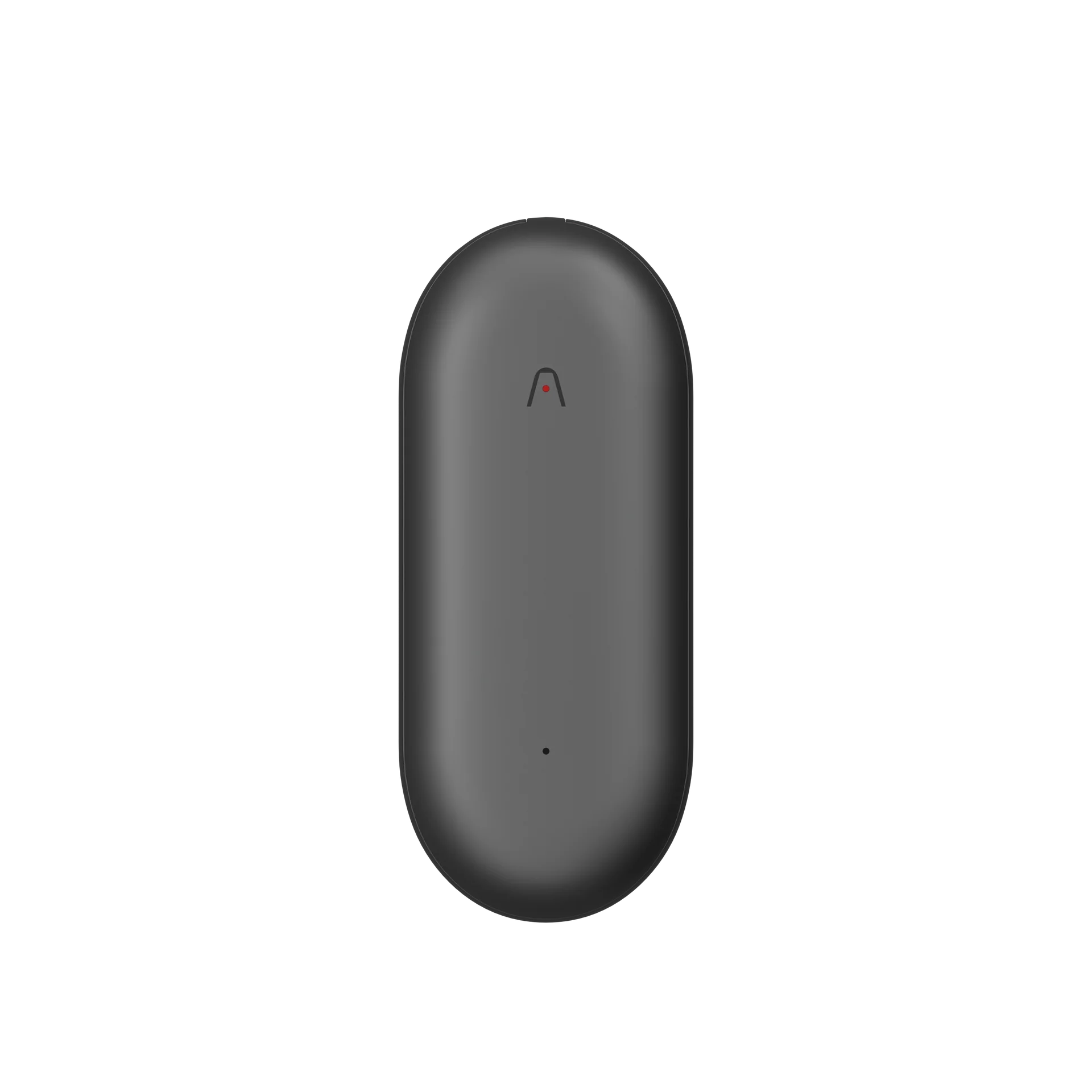
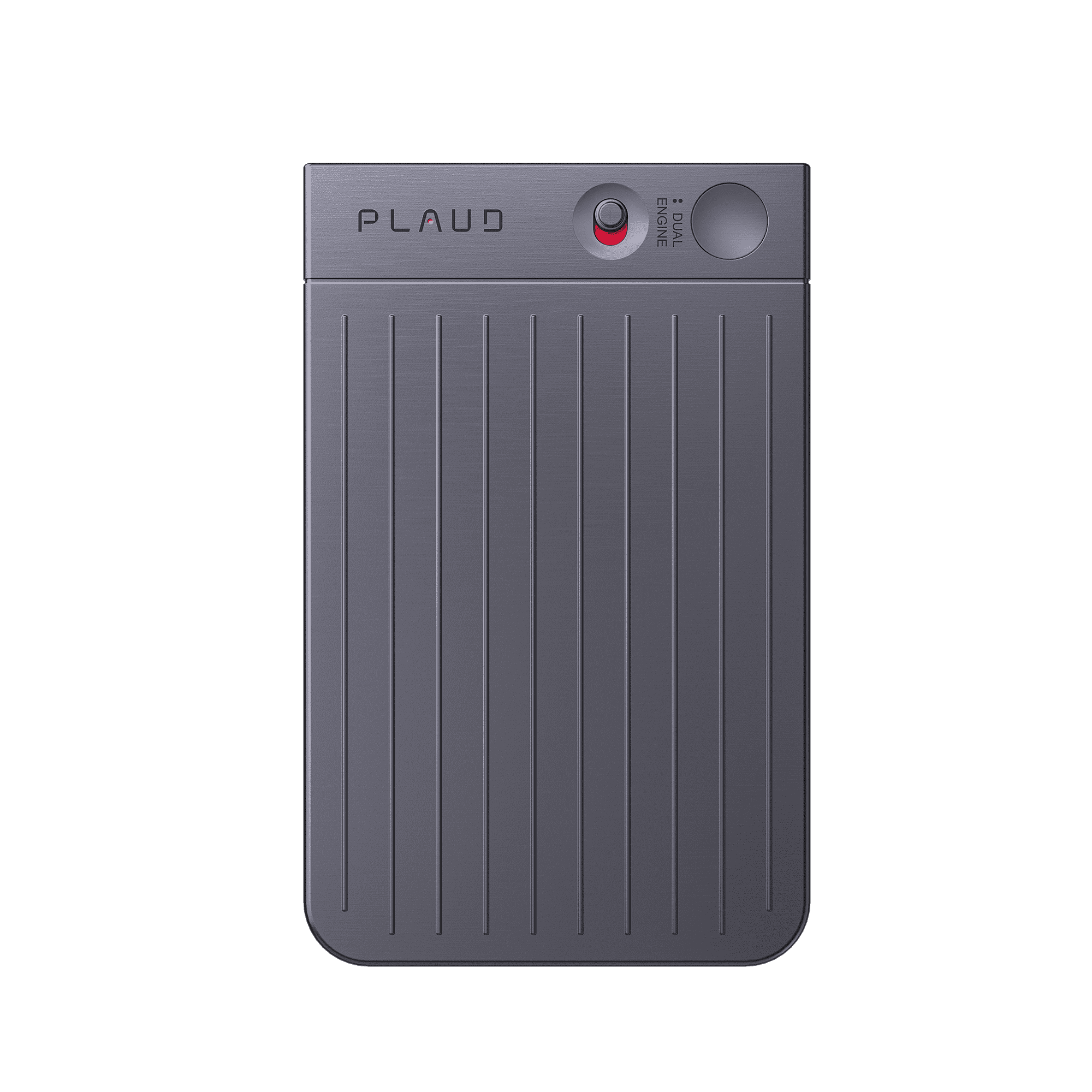
Plaud NotePin is built for people whose best ideas show up while they are moving. You clip it to a watch band, necklace accessory, or small clip, tap once, and talk. No screen, no menu, no hunt for the right app.
Step 1: Capture clear audio on the go
This wearable AI note taker stays with you on the train, between buildings, or getting into the car. A short press starts recording, so you can finish a thought out loud without stopping what your hands are doing. Later, those recordings wait in the Plaud app, ready for audio-to-text.

Step 2: Turn recordings into text with audio-to-text
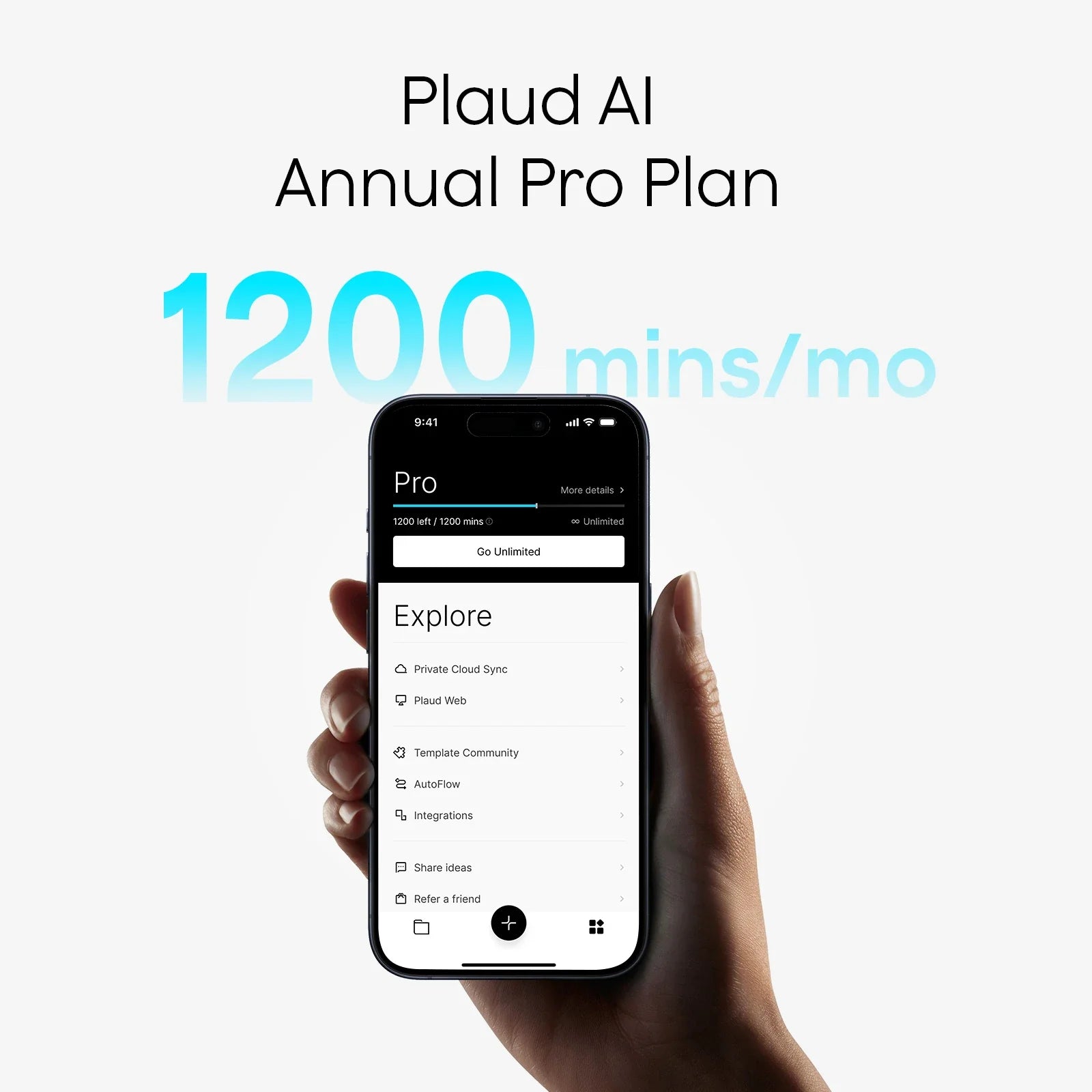
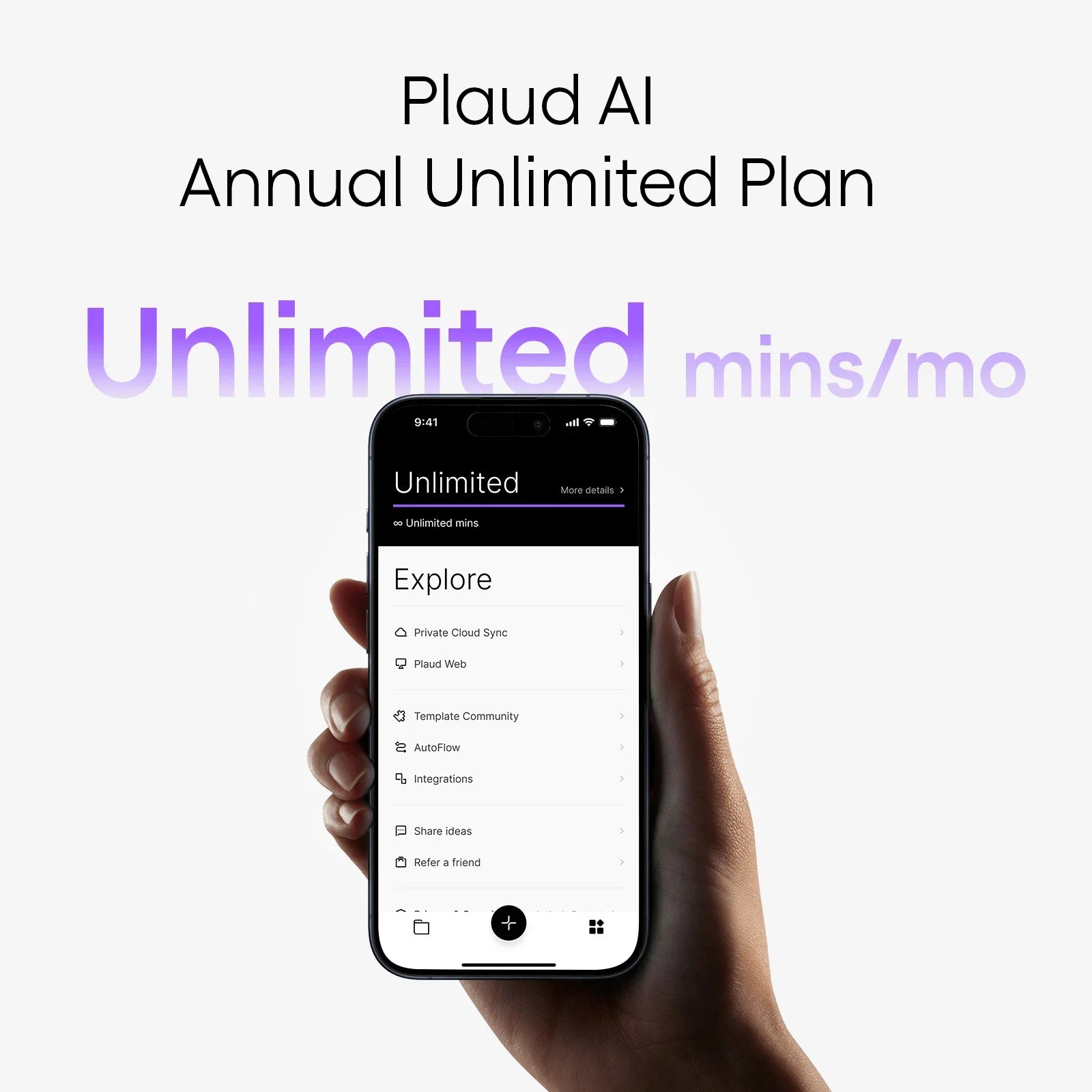
In the app, you pick the clips you want to convert and tap once to run speech-to-text. If you use AutoFlow, selected recordings can move from device to app, go through audio to text and a chosen template, then land in your inbox automatically.
Plaud’s AI transcription supports multiple languages, speaker labels, and custom vocabulary, so industry terms and names are less likely to be distorted.

Step 3: Use templates to turn text into something you can act on
Once your audio is in text form, you usually want more than a raw transcript. Inside Plaud App, you can choose from official templates and a growing community library to turn one recording into action items, a short recap, or a simple idea log. For quick stand-ups or walking 1:1s, that means you can record, run audio to text, apply a template, and end up with a clean summary that is easy to scan or share, without rewriting everything by hand.
How to capture ideas more effectively with audio-to-text? Practical techniques
You do not need a complicated system. A few small habits make audio-to-text much more useful, especially if you use Plaud NotePin and AutoFlow.
- Say what the recording is for in the first line
- Start with a clear label plus an instruction to your future self.
For example:
- “New feature idea for Q3…”,
- “Client follow-up to send tomorrow…”,
- or “Personal reflection about burnout…”.
In AutoFlow, keep your trigger phrases short, around 2–3 words, so voice activation is reliable without firing by accident.
-
Match recording length to the situation
For full meetings, do not worry about length. Let NotePin or your other recorder run. You will process it later with templates.
For “in-between” notes, a few minutes is fine. Many people find 5–7 minutes more useful than dozens of 10-second clips that feel too fragmented to review.
-
Separate ideas from work logs first
As a user, your first simple rule can be: split “inspiration” from “operational notes”. One place for ideas, one place for tasks, and meeting records. The rest of your categories can stay very light and adapt as you go. -
Let Ask Plaud build your to-do lists
Instead of manually reviewing every note, you can use Ask Plaud to scan today’s recordings and assemble a list for you.

A prompt like “From today’s recordings, list what I should do tomorrow, this week, and later” turns scattered audio clips into three clear to-do lists without you replaying everything by hand.
When should I use audio-to-text? Key situations explained
Ideas don’t usually show up when you’re sitting comfortably at a keyboard.
They appear in those “in-between” moments, walking between meetings, getting into the car, switching tasks, when stopping to type doesn’t make sense.
That’s exactly when audio to text becomes invaluable: you speak one quick line, keep moving, and the thought is saved instead of lost.
Here are some situations where you can use an audio-to-text tool.
Busy professionals
When you’re walking out of a meeting with your brain still buzzing, or when you finally slump onto the sofa after a long sprint, a perfect solution suddenly floats up out of nowhere.
In those moments, pulling out a laptop feels ridiculous, and even typing on your phone feels like too much work. So you tell yourself, “I’ll write it down later,” and of course, later never comes.
In this case, you can say the thought out loud with an audio-to-text tool, like Plaud NotePin, and keep going. No stopping, no context switching. And when you get back to work, that little spark is still waiting for you instead of being lost somewhere between the sofa, the hallway, and the rest of your day.
Creative workers
Creative workers chase inspiration for a living. A designer friend once dropped into a squat on the street to catch how the light hit a wall. But the real challenge isn’t noticing ideas. It’s the sheer volume. They come too quickly, and most never get developed.
Speaking one quick, labeled line into an audio-to-text tool changes that. Instead of letting the moment slip, you save it in seconds, giving more of those sparks a real chance to grow into something useful.
Students and researchers
While you’re listening to a lecture or a talk, a question about a method, a link between two papers, or an idea you want to apply in your own work.
But the speaker keeps going, and you don’t want to miss the next point. So you push the thought aside… and it usually never returns.
Saying one quick sentence into an audio-to-text tool gives that thought somewhere to live without making you choose between listening and thinking.
Conclusion
Most busy professionals do not need a grand system for ideas. They need a way to keep the useful ones that appear at awkward times. Audio to text, plus a small, always-on recorder like Plaud NotePin, gives you that option.
You speak once, let transcription and a short review habit do the heavy lifting, and turn scattered gaps in the day into a running log of thoughts you can actually use later.
FAQ
Can ChatGPT transcribe audio to text?
Not on its own. You need a separate tool to create a transcript first, then you can paste that text into ChatGPT to rewrite or summarise it.
How to transcribe audio to text online for free?
You can upload a file to a free online transcription service. These tools are fine for short, clear clips, but they often struggle with background noise, strong accents, or long recordings where accuracy matters.
What is the biggest difference between dictating and typing?
Dictation is faster and more free-flowing. Typing is slower but often helps you shape and polish sentences as you go. Many people use both, depending on whether they are generating ideas or refining them.