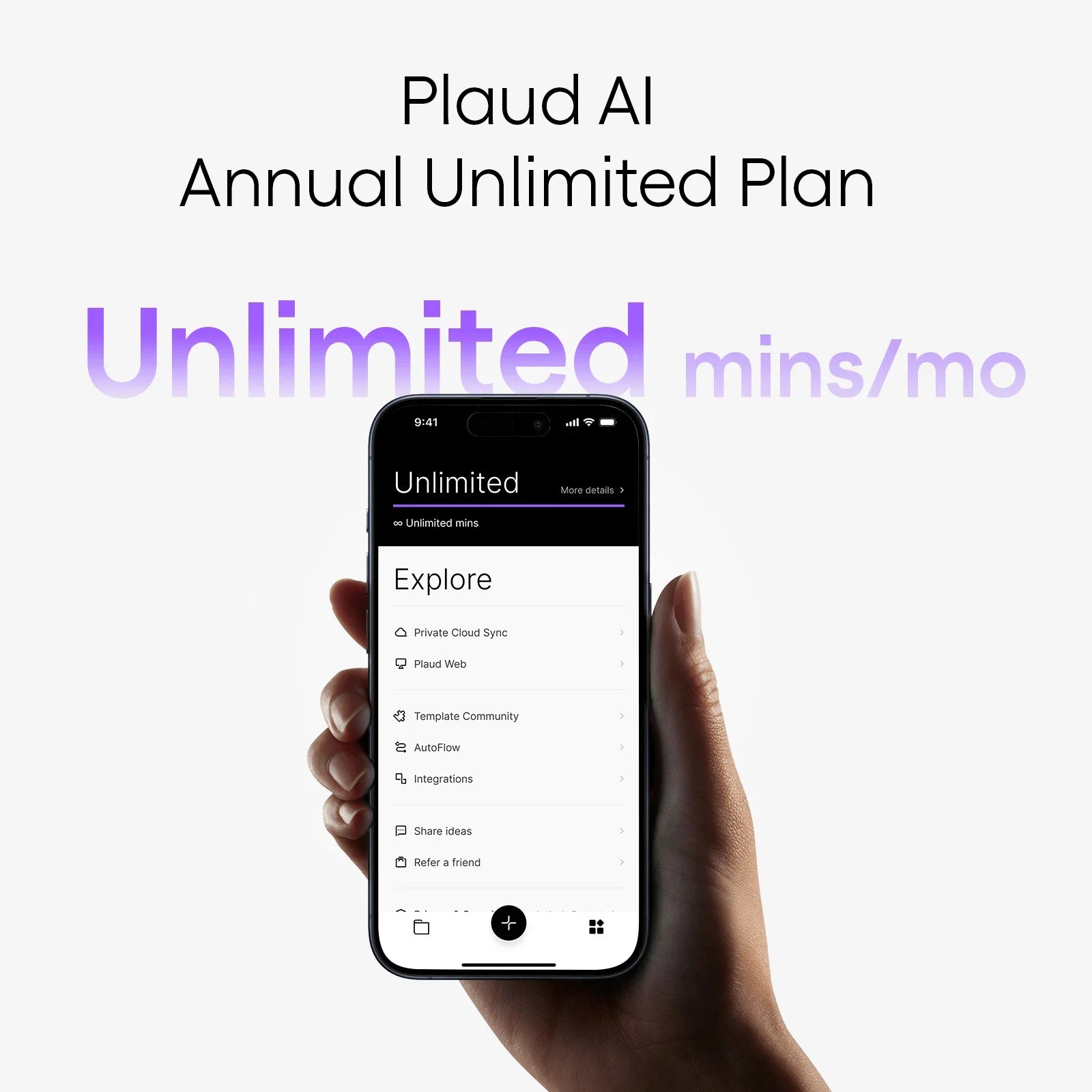
Recording phone calls on Android is confusing because different phones and Android versions have different rules. Samsung- and Xiaomi-built Android phones both have recording functionalities built-in, but many new devices do not. You can try using applications like Google Voice or Cube ACR, but their effectiveness cannot always be relied on. Hardware solutions like Plaud work on any Android device because they do not use software - they just capture the audio straight away. Just make sure to ensure that it is legal in your location to record calls prior to recording conversations.
Let's explore several recording methods that you can try on your Android device, starting with built-in options and moving toward more reliable alternatives if those don't work for your specific phone.
- Try the built-in recording feature (if available)
- Use a third-party app
- Use a hardware device
- The one solution that works on any android device
- How to use Plaud to record phone calls
-
Is it Legal to Record an Android Phone Call Without Consent?
Frequently asked questions (FAQ) - Never miss an important call again
Try the built-in recording feature (if available)
Most Android phones include a call recording option already integrated into the Phone app. This is the simplest option for recording incoming and outgoing calls, so it's worth trying first.
Finding the recording feature
If you're on a call, look for a "Record" button on your screen. Tap it to begin recording, and tap stop to finish recording. If you can’t find it, you may need to enable recording in the Settings menu.
Tap on the vertical dots (⋮) or the gear icon to select Settings. Then, select “Always record.” Now, you should see the Record button during your calls. You can also tap “Selected numbers” if you want to record calls from specific numbers.
Phones that support built-in recording
Samsung Galaxy phones typically include call recording in their One UI system. Xiaomi devices with MIUI also have strong recording features. Other brands with built-in recording include:
- OnePlus
- Huawei
- Oppo
- Vivo
- Realme
Why it may not work on newer phones
Google has made it harder to record calls on newer versions of Android because of privacy issues. Starting with Android 10, the majority of phones lost their built-in recording feature. Even if your phone company used to support recording, updates might have removed this feature from your phone. This is why most individuals have to look for other ways when the built-in option is not available.
Use a third-party app
If the default call recording feature is not available to you, you can use third-party apps. They are a bit inconvenient, though. And most of these software solutions do not provide completely accurate transcription.
The two most common third-party phone recording apps for Android are:
Google voice
The Google Voice app is the most popular way to record incoming calls. When you receive a call via the Google Voice application, press "4" on your keypad to start recording. The largest drawback is that it will only record incoming calls, not outgoing calls, and you must be using the Google Voice app as your calling application.
Cube ACR
Cube ACR is one of the best call recorders on the Play Store. It records regular phone calls and most VoIP services like WhatsApp and Skype. The app offers different pricing tiers based on your device and needs:

For Android users:
- Free version: Includes basic call recording, voice recording, and archiving features for a single user
- Premium: $20 per year for a single user, adding cloud backup and the ability to add text notes to your recordings
For iOS users:
- Free version: Limited to voice recording and basic archiving for a single user (no call recording)
- Premium: $50 per year for a single user, adding call recording capability, text notes, and cloud backup
Most third-party call recording apps struggle with newer versions of Android (Android 10 and later) due to Google's restrictions. On these newer systems, you'll need to manually enable Accessibility permissions for recording apps. Even then, they often fail to work properly. Android's increasingly strict limitations have made app-based recording solutions unreliable for call recording.
That’s why we recommend option 3 for recording phone calls, especially for business purposes.
Use a Hardware Device
Hardware solutions are the most reliable and accurate method for recording calls. They produce accurate results regardless of your Android version or manufacturer's limitations.
These digital voice recorders are standalone devices with built-in microphones that record conversations for you and then transcribe, organize, and even analyze them.
When you’re done, you can automatically upload them to the web via an app. We think the advantage is clear here. Instead of just getting a basic recording, the hardware device instantly formats your recording and provides invaluable insights, like sentiment analysis, action items, and speaker identification. If you're in a business setting, it's a no-brainer.
The One Solution That Works on Any Android Device
If software solutions do not work, hardware solutions yield consistent results regardless of your Android version or manufacturer's limitations.
Introducing Plaud: a device-based Solution
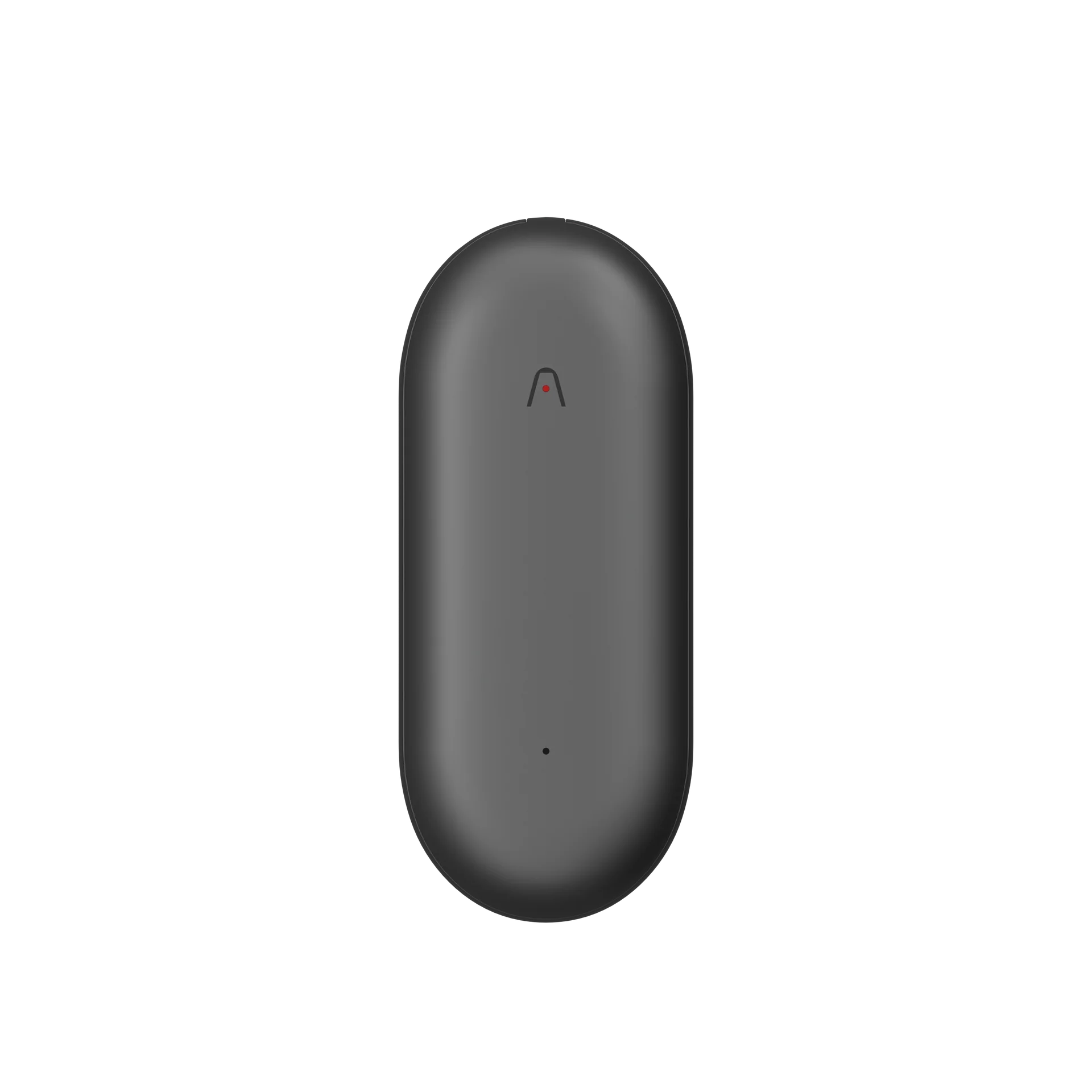
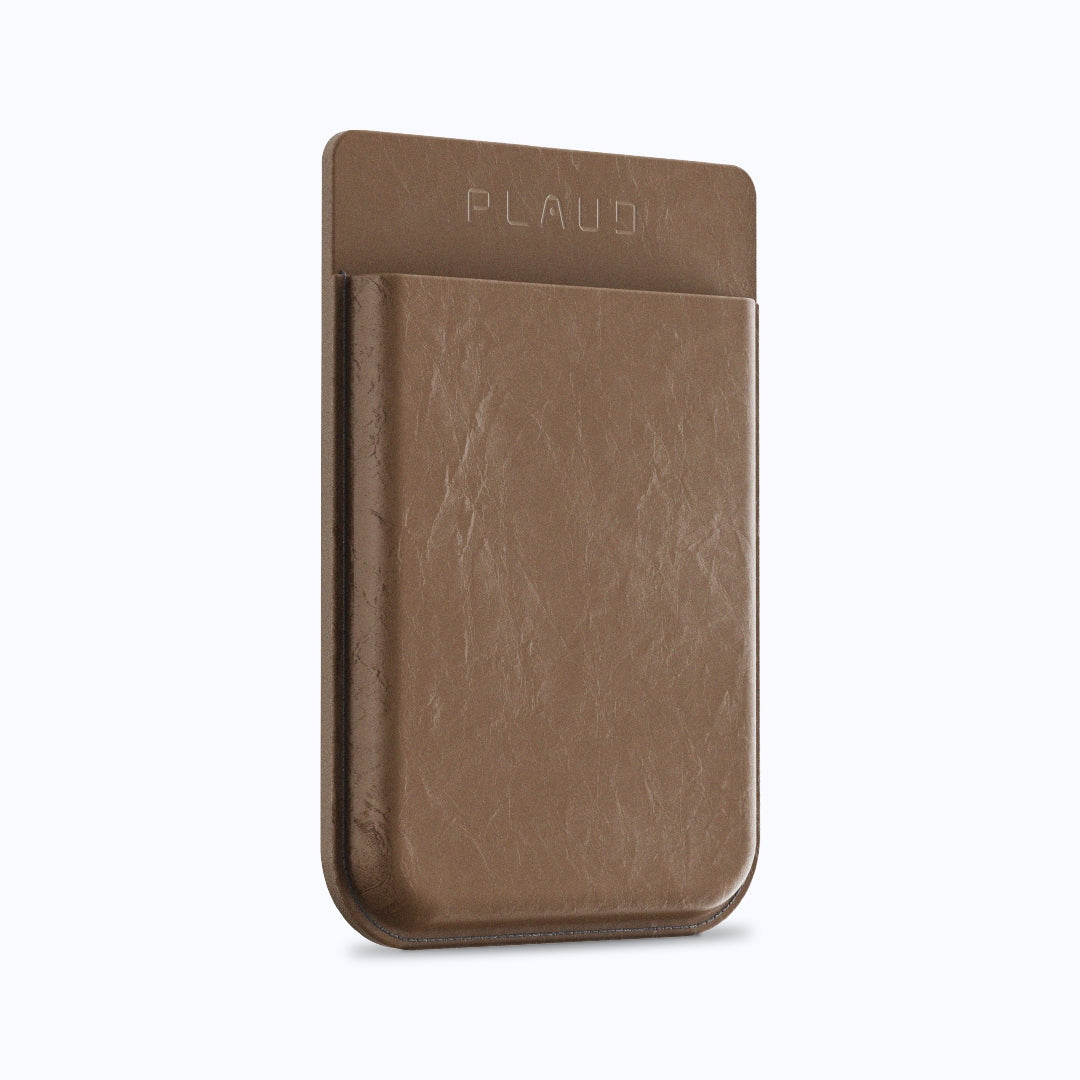
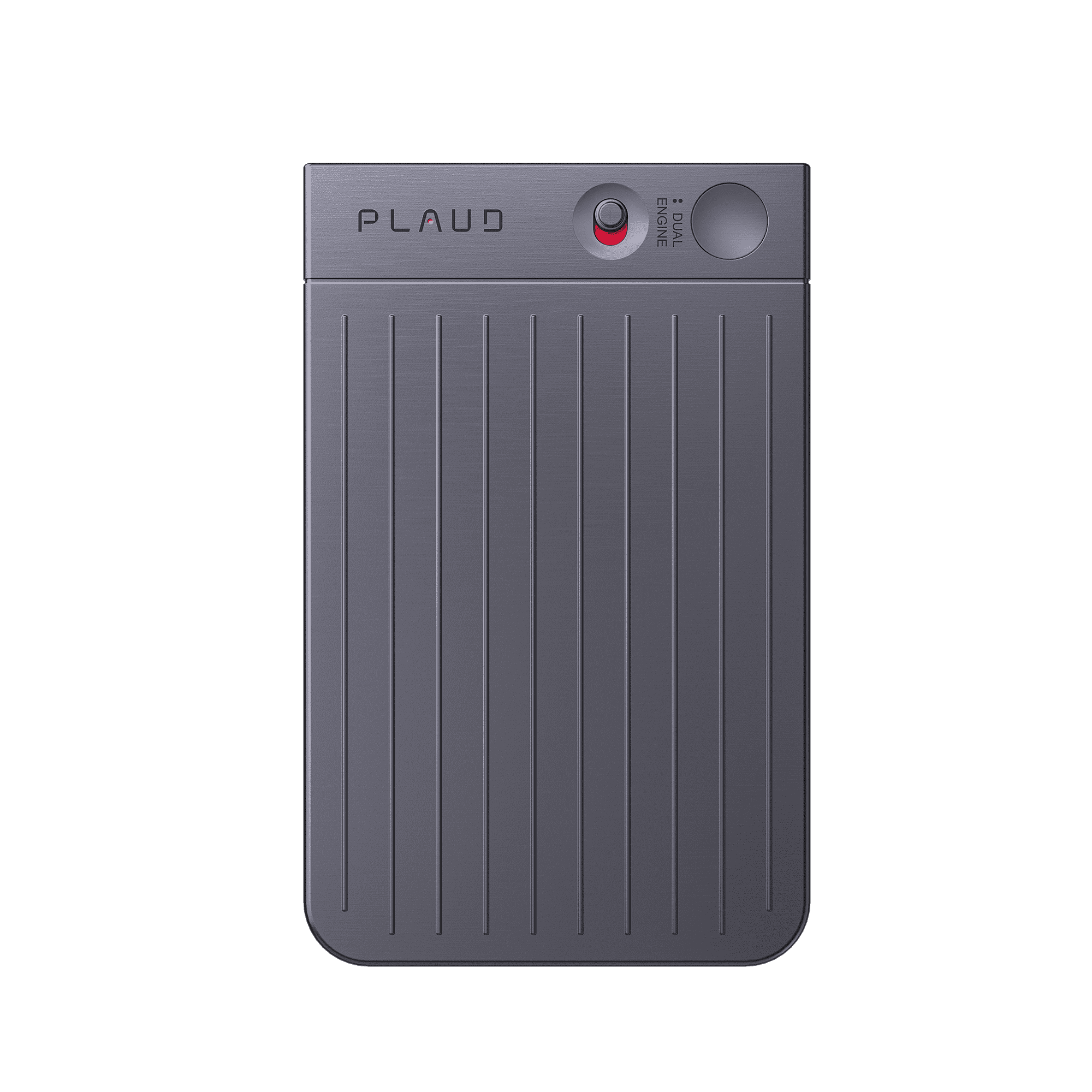
Plaud provides two hardware options that bypass Android's recording restrictions. Plaud Note is an AI voice recorder the size of a credit card with a thin aluminum body. It clips to your phone via MagSafe compatibility and records and transcribes your calls automatically.
Works Offline And Without Software Limitations
Unlike Android permission-based apps, Plaud devices record audio directly using internal microphones. They function completely offline and are not dependent on your phone software to function. Simply press the record button on your Plaud device while on a call, and it will record everything. You’ll never have to deal with settings or permissions to record calls on Android.
Advantages of Hardware Recording
Plaud offers several benefits over software options:
- Clear sound through its dual-pickup engine (Plaud Note)
- No compatibility issues with any Android version
- Long battery life (30 hours of constant recording and 60 days of standby on the Plaud Note)
- 64GB storage capacity on the Plaud Note
- Offers AI transcription and call summaries developed on GPT-4.1, o3-mini, Claude 3.7 Sonnet, and Gemini 2.5 Pro
- 112 languages supported for transcription
- Multiple professional templates for different recording scenarios

Hardware-based solutions like Plaud are especially convenient for professionals who need reliable call recordings on a regular basis for meetings, interviews, or important conversations.
How to use Plaud to record phone calls
It's easy to activate and use a Plaud device for recording calls, even if you are not very tech-savvy. Here is how to get started.
Recording a call with Plaud
- Start recording: Long-press the Record Button for 1 second until you feel 1 vibration
- Stop recording: Long-press the Record Button for 1 second until you feel 2 vibrations
- Access your recording: You access your recordings through the Plaud app on your smartphone
For the best quality, place the Plaud device close to your phone's speaker or use speakerphone mode for important calls. To learn how to use Plaud, check out our guide page.
Accessing and using your recordings
Once you record a call, you can access your recordings on the Plaud app:
- Open the Plaud App on your phone
- View your recorded calls in the app library
- Click on any recording to play, rename, or organize it
- Tap share to send files or transcripts
- Tap delete to remove recordings from your device
-
Back up your recordings to Google Drive

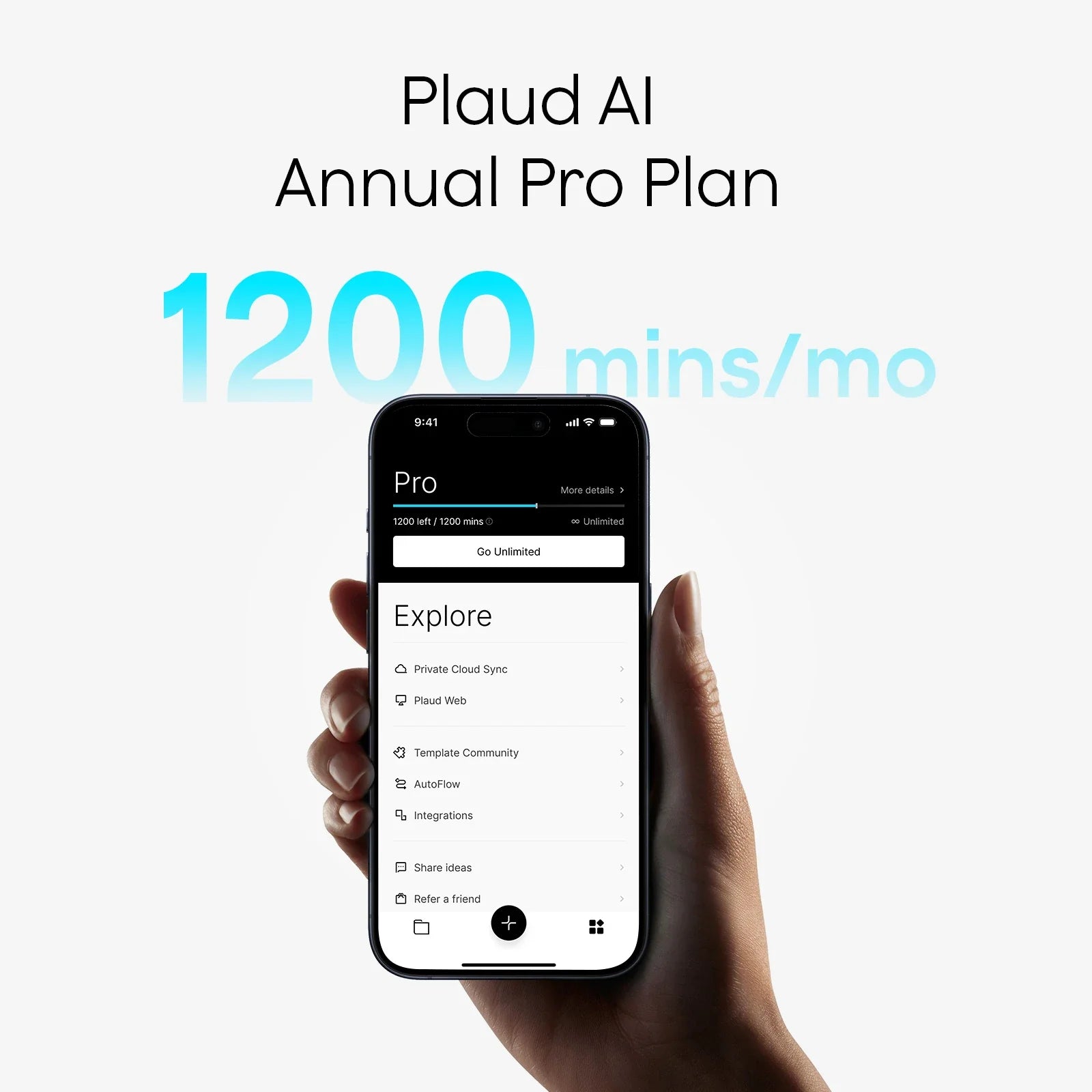
The Plaud app has sophisticated AI features, including GPT-5, Claude Sonnet 4, and Gemini 2.5 Pro. Transcribe in any of the 112 available languages, summarize long conversations, and also get your recordings organized using pro templates for any occasion.
If you have to share important information, simply export your recordings or transcripts directly from the app. This also makes Plaud especially handy for professionals who need to record calls or extract important information from conversations.
Is it Legal to Record an Android Phone Call Without Consent?
Whether it’s legal to record an Android phone call without consent or not depends on your jurisdiction. Call-recording laws vary by country. In the U.S., they can also differ from one state to another.
Most U.S. states follow one-party consent rules, meaning only one person on the call (you) must consent to the recording. If you’re in one of these states, you may record the call legally because you have consented to it. However, several states require consent from everyone on the call, and recording without permission can be illegal.
Always check local laws in your state or country before recording a call. When in doubt, get consent from everyone on the call before recording anything.
This is general information, not legal advice. If you’re unsure about your situation, consult a lawyer.
Never miss an important call again
Recording calls on Android doesn’t have to be complicated. Now, you know how to get started recording high-quality calls on Android with built-in tools, third-party apps, and hardware options like Plaud.
Remember: built-in tools and other apps are fine if you only need occasional recordings and don’t care too much about quality. These options are easy, but they can create low-quality audio or fail to record.
If consistency and quality matter to you, you need a hardware option like Plaud. Plaud is a physical recording device, so it bypasses all software limitations. It captures high-quality, accurate call recordings on any Android device. And, it adds AI transcription and summaries so you can quickly review and organize what was said.
Don’t risk missing details from an important call, and stop wasting time sorting through recordings. Get Plaud Note for reliable, transcription-ready call recording on Android.
-
About Plaud.ai
Plaud.ai is a pioneering AI-native hardware and software company that turns conversations into actionable insights with AI devices like Plaud Note and Plaud NotePin. By recording, transcribing, and summarizing real-life conversations, our solutions boost productivity and save time. Designed for precision and flexibility, whether in meetings or on the go, our products empower you to focus on creative, high-value work while AI handles the details.